Solo
- Macs
- One
- Path
- Phone → ButtonHub → QLab and Companion
- Use it
- Most shows, where a second Mac is not warranted.
One Mac does everything. Nothing is paired and nothing is mirrored. If you are not running a standby, this is the mode you want.
ButtonHub is a macOS app. It gives your crew PIN-protected control pages they open in a phone browser, and keeps a second Mac in step and ready to take the show.
Runs beside QLab and Companion on the show Mac. Nothing to install on the phones, no accounts, and the venue network is enough.
£40 launch price · covers two Macs · macOS 10.15 or later
ButtonHub is already running live productions and is still under active development. Expect regular updates.
What it does
Each one is a thing you would otherwise solve with a spare fader, a borrowed laptop or somebody standing next to the desk.
Put the QLab controls you choose into a browser page. GO, stop, a named cue, a specific workspace.
ButtonHub talks to QLab over OSC, on the same Mac or across the network.
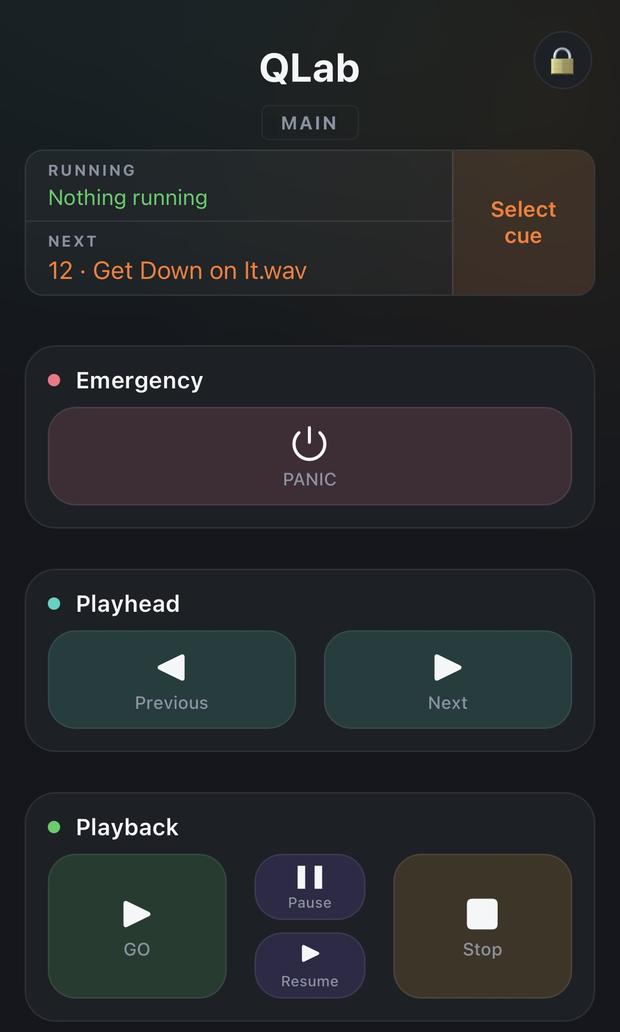
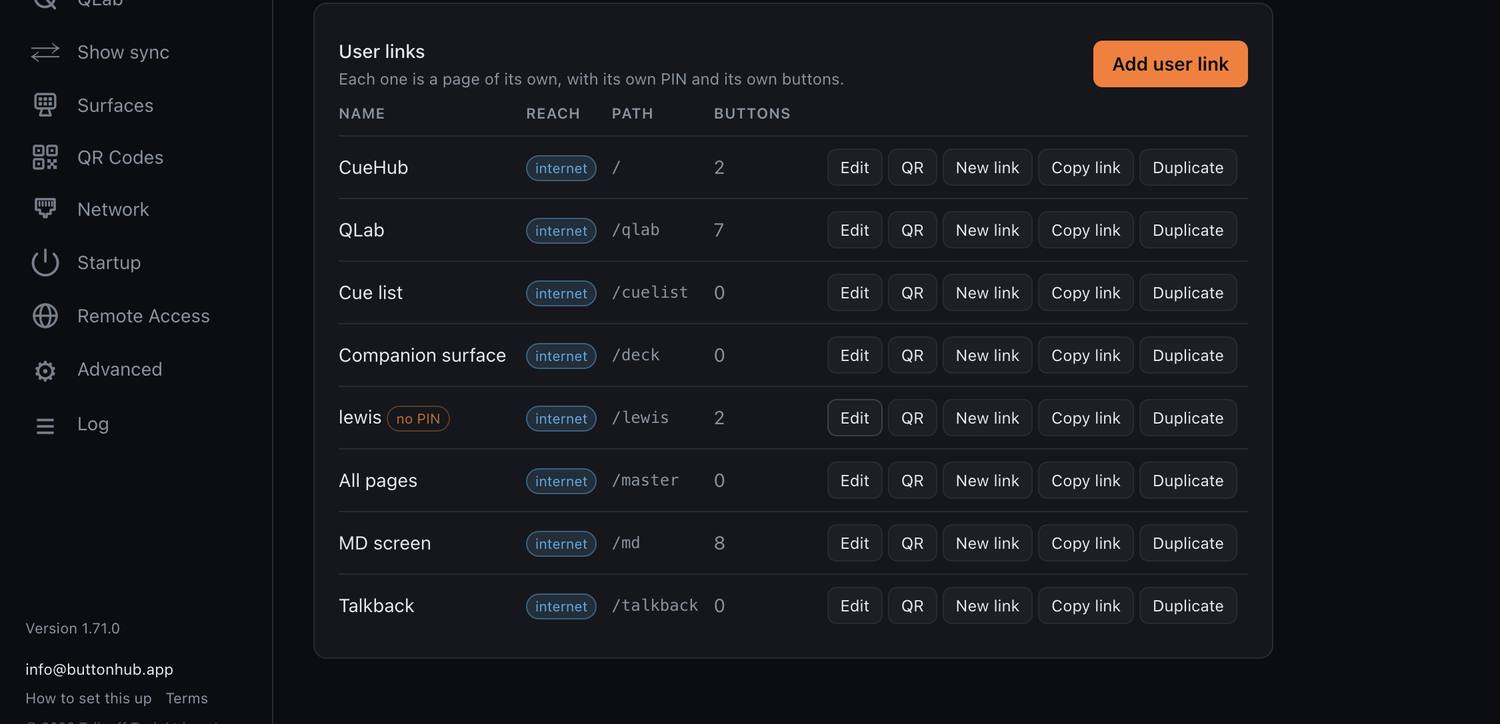
Sound, comms, stage management and a runner each get their own page with their own PIN and nothing else on it to press by mistake.
Each page is a separate link. Retire one and that phone is out, without touching the others.
Run a main and a standby. The standby stays in step and can take the show when a person promotes it.
It fires nothing at all until promoted — enforced inside ButtonHub’s QLab layer, not just hidden in the interface.
Expose the Companion buttons you choose without exposing Companion itself.
ButtonHub presses a position — page, row and column — never a name. Companion itself is never reachable from the phones.
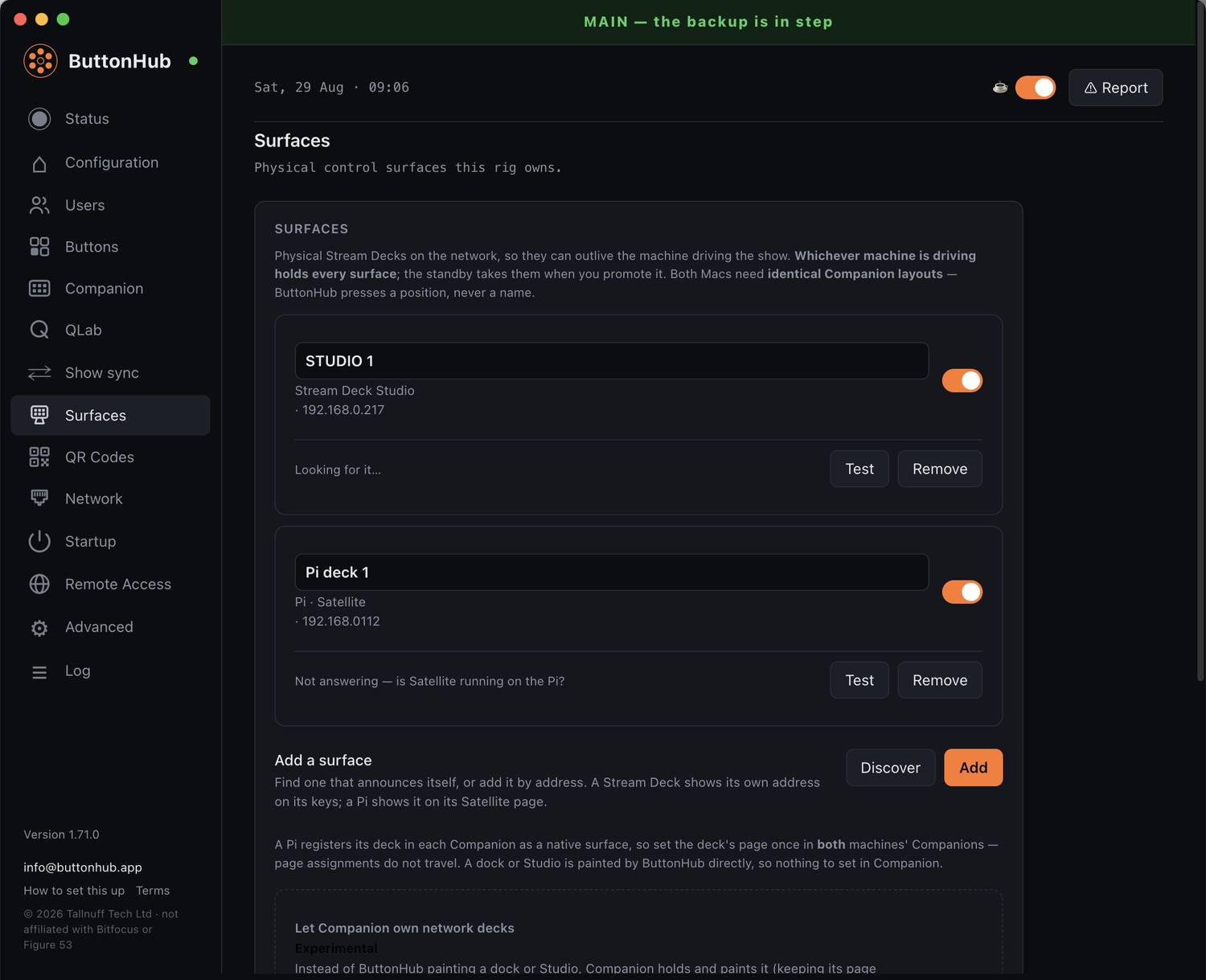
A deck on USB dies with its machine. Put it on the network and whichever Mac is driving holds it, so it moves with the show rather than with the computer.
Three ways to get it there: an Elgato network dock, a Stream Deck Studio, or a Raspberry Pi running Satellite. Companion’s own button images are painted onto the deck, and the grid is read from the deck itself.
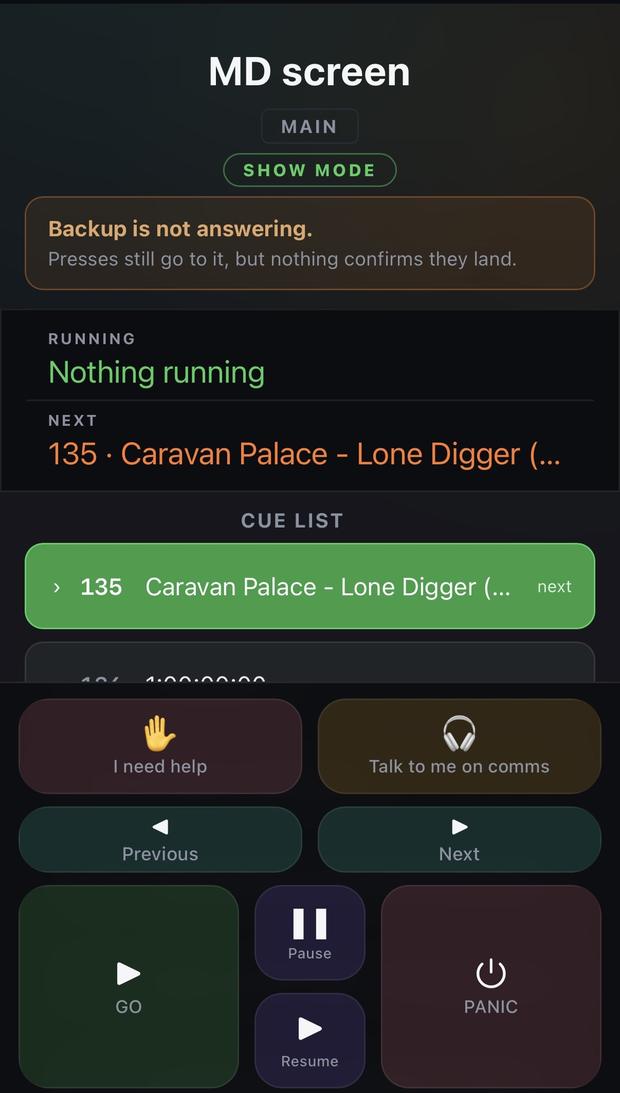
A readable page for the musical director: the cue running now, the one coming next, and the list around it.
Tracks the playhead and the selection, about a third of a second behind QLab. Selecting a cue does not fire it.
A show chat between the people running it, with preset calls and full-screen colour alerts for the ones nobody can miss.
Runs on phones and on the operators’ own screens. One link, as many named voices as the show needs.
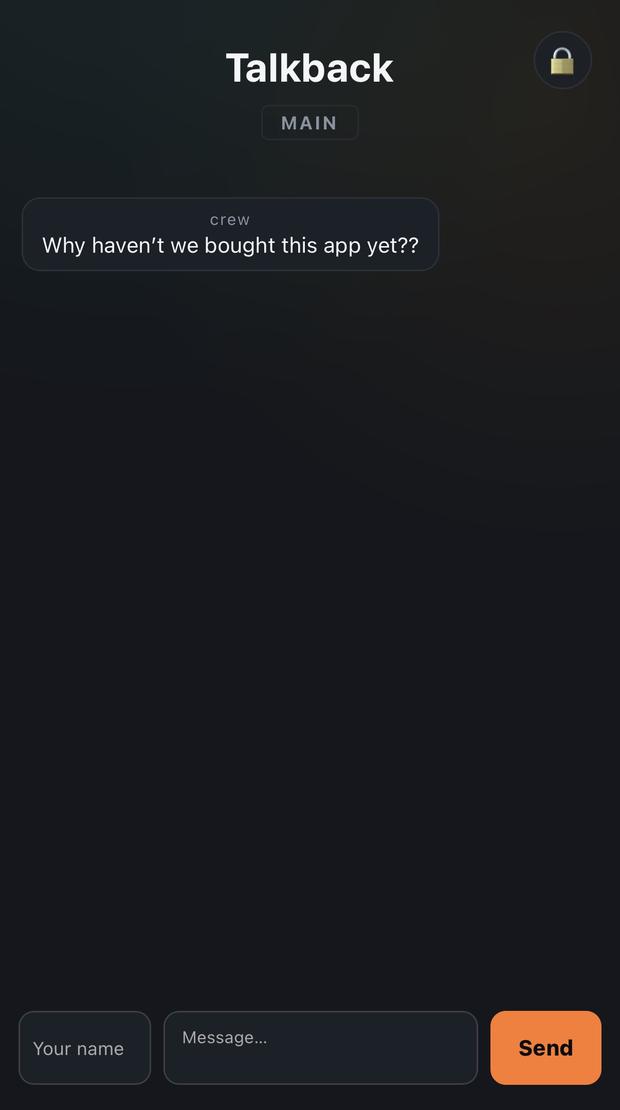
On the venue network ButtonHub needs nothing else. Where there is no network to put everyone on, the same pages arrive over our relay instead.
That is the one part that costs extra. Everything above works on the local network for the price of the app.
How it works
ButtonHub sits beside the software you already run. It does not replace QLab or Companion and it is not in the audio path.
An ordinary macOS application, alongside QLab and Companion. macOS 10.15 or later, Apple silicon or Intel.
QLab over OSC. Either can be on this Mac or on another machine you name by address.
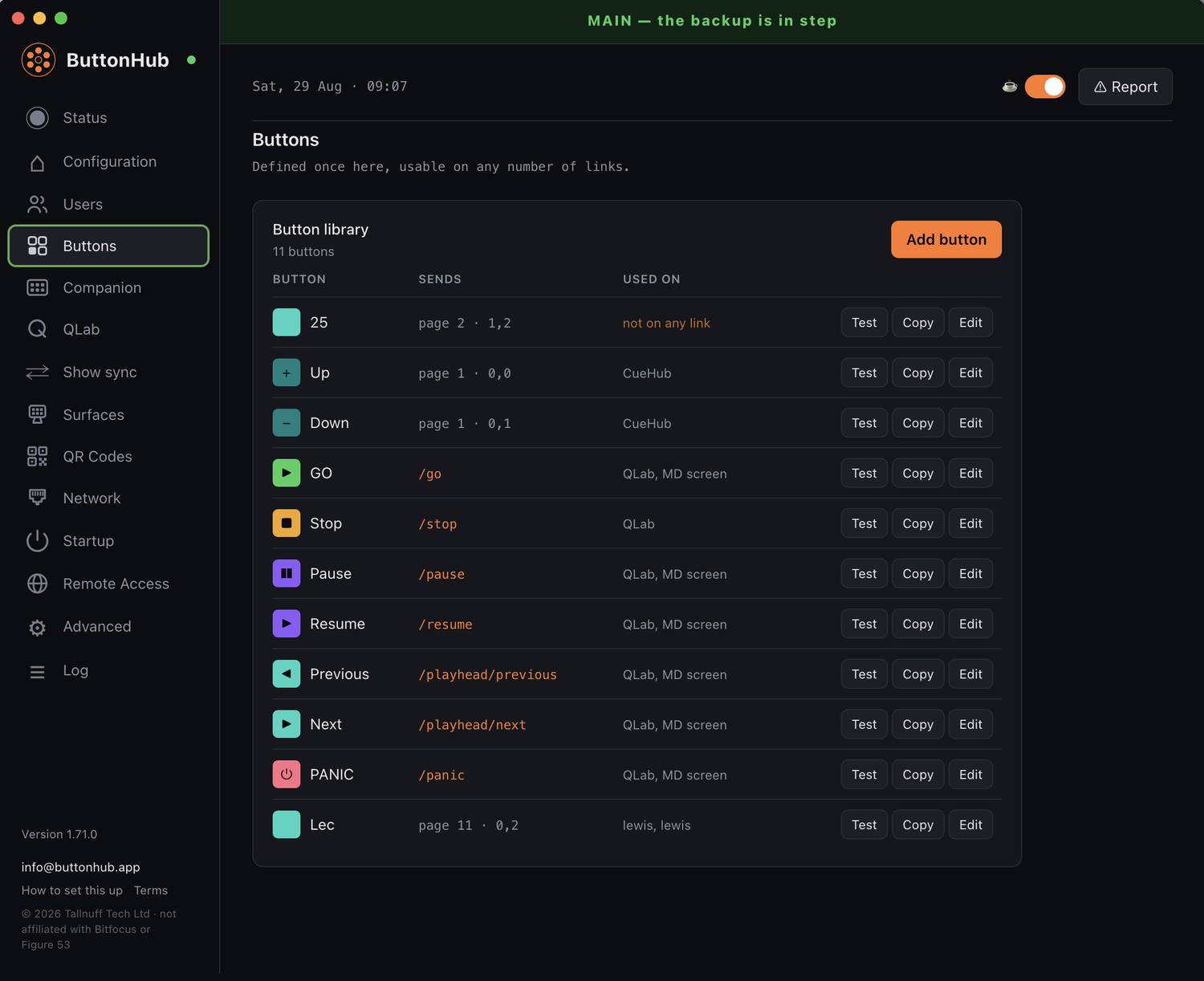
Choose who gets which buttons. Each person gets a link and a PIN, printed as a QR sheet if you want one.
A phone press reaches ButtonHub, which sends it to QLab or Companion. Saved to a home screen, the page opens full screen with no browser bar.
Promote the standby. The crew’s phones find it on their own in about five seconds, carrying their unlock. Nobody touches a phone.
When it breaks
A failure here is not an error on a screen. It is a cue missed in front of an audience. So this is what each failure does, and what it deliberately does not do.
Rig modes
The mode decides what this Mac does and what follows what. You choose it once, from the same five pictures the app shows you.
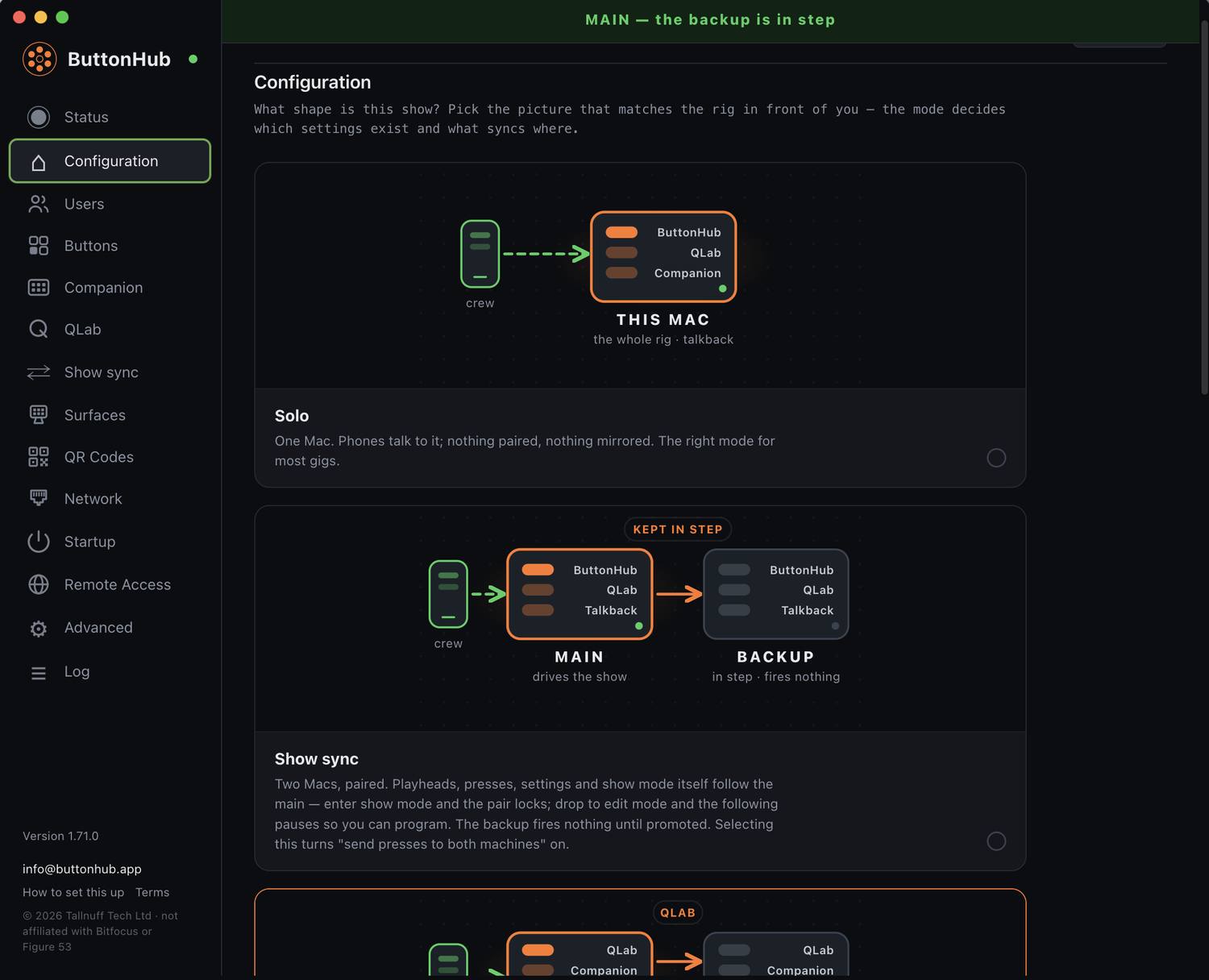
One Mac does everything. Nothing is paired and nothing is mirrored. If you are not running a standby, this is the mode you want.
Playheads, presses and settings follow the main. The standby writes nothing to QLab until a person promotes it, so a cue can never fire twice.
Everything show sync does, and a press aimed at Companion fires on the standby’s Companion too. Both Companions must carry the same layout.
No pairing and no standby. ButtonHub fires straight into QLab and Companion on machines you name by address.
Shows MD messages and joins the talkback chat. It sends no cues and needs no licence, so you can put one on every machine in the room.
Free
An unlicensed copy is not a nag screen. It is a listener: it shows the MD’s messages, sees the flashes and joins the talkback chat, and fires nothing at all.
Anyone who needs to be on the show’s comms but never presses a cue. An RF tech watching racks, a sound number two, anyone parked away from the desk who just wants to talk to the room.
Nothing, and it needs no licence. There is no reason not to put one on every Mac in the building.
Price
Everything on this page works on the venue network for the price of the app. Remote access is the only extra, and only if you need it.
£40
Launch price · one-off purchase, plus VAT
Tax added at checkout at your local rate
Refunds through Polar. Consumers keep their statutory cancellation rights
Optional · prices plus VAT
Lets the same crew pages be reached when a phone is not on the venue network: a runner on mobile data, or a show with no shared network at all. Everything else works without it.
Tax added at checkout at your local rate
FAQ
No. Either on its own is fine. ButtonHub drives whichever you run, and a rig with only Companion is a normal setup — the standby’s health check follows Companion instead of QLab.
No. On the venue network nothing leaves the building. Remote access is the only part that uses the internet, and it is optional.
QLab 5, and Bitfocus Companion 4.2 or 5.0. macOS 10.15 or later, Apple silicon or Intel. Anything Companion can press, ButtonHub can hand to a phone.
No. One purchase, at the £40 launch price, activates two Macs. Remote access covers both machines of a redundant pair as well, so a paired rig never pays twice.
A page carries only the buttons you put on it, and the PIN is checked on the server for every request, not just at the login screen. Nobody sees QLab, Companion or the show file.
Yes. An unlicensed copy runs as a listener, free and with no licence at all — what listener mode does.
Yes. The crew pages are web pages, so anything with a browser opens them. Saved to the home screen they run full screen, with no browser bar.
Remote access stops at the end of the period you paid for. Everything else carries on working on the venue network, and the app itself does not expire.